Moving Puppy Records Off Spreadsheets and Paper
Count the places your puppy records live. There’s the inventory spreadsheet, the kennel card clipped to the door, the whiteboard in the back for the day’s care, the binder of signed contracts, and the supplier portal holding the breeder paperwork. It works fine until a second location opens, or the one person who understands the spreadsheet takes a week off.
Most of the work in moving puppy records to kennel software is cleaning up what you already have. This is the order we’d do it in, so nothing you need later gets lost.
Decide which puppy records move and which get archived
You don’t need every puppy you’ve ever sold in the new system. Sort your records into three groups.
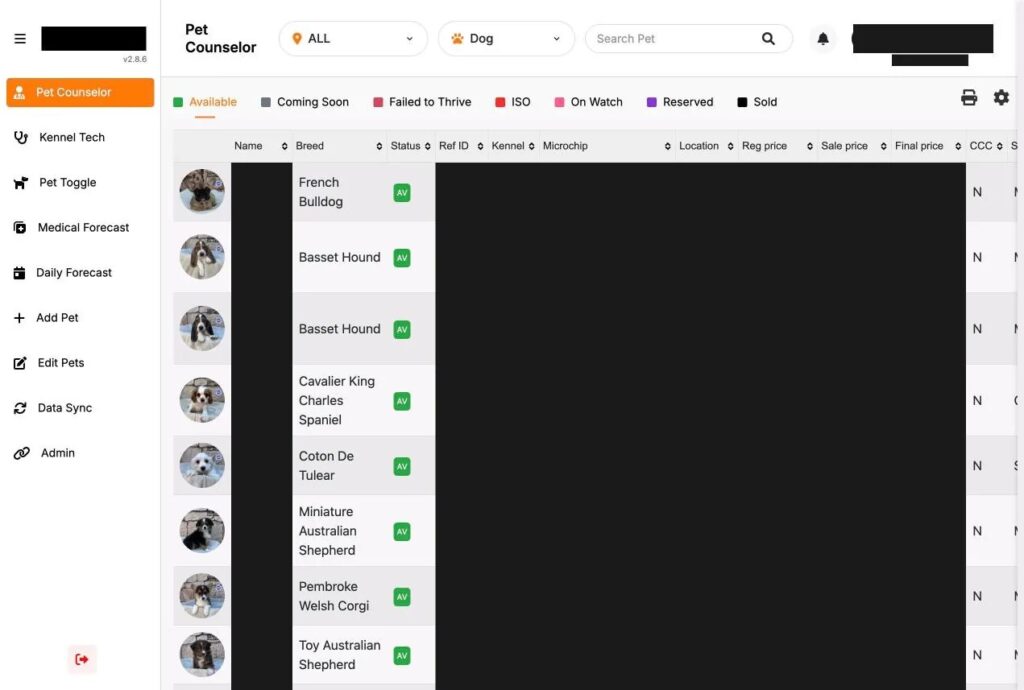
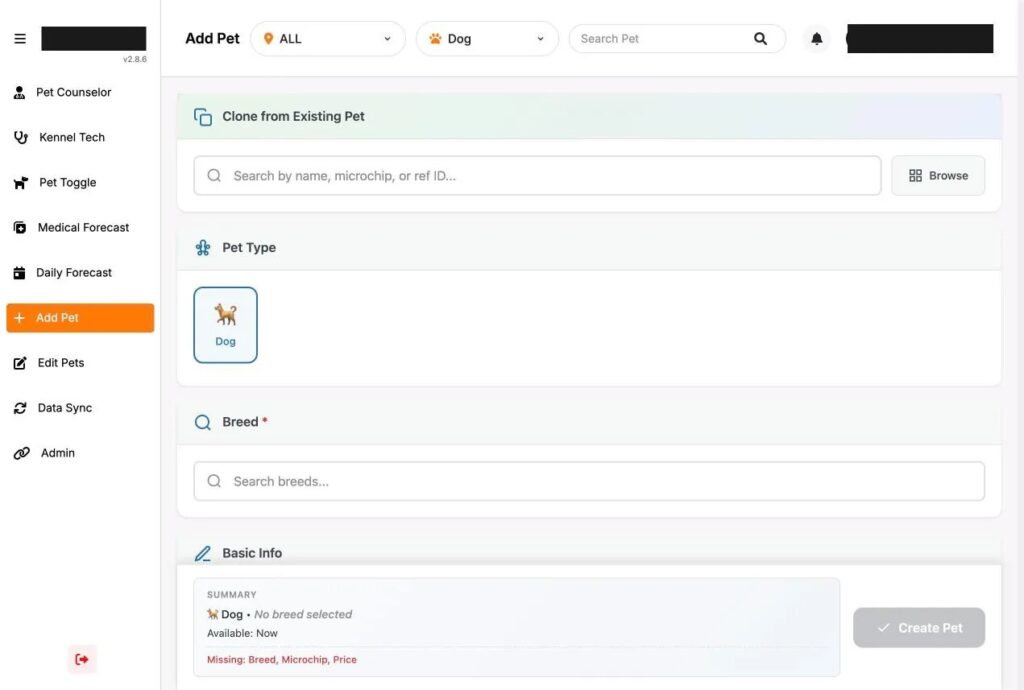
- Pets in the store now, plus anything coming soon or reserved. These move in full: breed, sex, color, birth date, microchip, supplier and breeder, cost, price and every health entry.
- Pets sold recently, going back as far as you still get warranty calls. At minimum, move the customer, sale date, microchip number and signed contract.
- Everything older. Archive it. Export the spreadsheet to a dated file, scan the binder if it hasn’t been scanned, and keep both somewhere that gets backed up.
Before any paper goes in the shredder, check how long your state expects you to keep sale and health records. The answer varies, and it’s worth a call to whoever handles your licensing.
Clean up the puppy records spreadsheet first
Spreadsheets drift. After a couple of years, one column holds three kinds of information and the same breed is spelled four different ways. Fix that in the spreadsheet first. A clean list is much faster to enter, or to hand to whoever sets up your system, than a messy one.
- One row per pet and one column per field. Split anything like “M / black / 3 lb” into separate columns.
- Pick one spelling for each breed and color, then use find and replace on the rest. Designer and mixed breeds are where this goes wrong most.
- Put every date in one format. A birth date typed as 3/4 means March 4 to one person and April 3 to another.
- Sort by microchip number and look for duplicates and short numbers. Duplicates usually come from copying and pasting rows. To confirm a chip number is real, run it through the AAHA Universal Pet Microchip Lookup.
- Give every pet a reference number if it doesn’t have one, and write it on the kennel card so the paper and the file match.
Save a copy of the cleaned file, and keep the original untouched in case you need to go back to it.
Get the kennel cards into the pet record
Care history is the part people skip. It’s also the part customers ask about. For every pet still in the store, someone has to enter the vaccine dates, deworming dates, vet exams and treatments from the kennel card. Do it pet by pet with the card in your hand, and enter the date the treatment was given, which isn’t always the date somebody wrote it down.
The whiteboard is different
You don’t import a whiteboard. You rebuild the routine it stands for: feeding times, weigh-in days, the deworming and vaccine schedule. Set those up as routines in the software so each shift opens a list of what’s due. In Unified Kennel Management these are the daily and medical forecasts, and care that gets missed shows up as an alert.
Let the supplier feed handle new arrivals
If you buy through a supplier portal, connect it before you go live, not after. New pets then come in with photos and documents attached and wait in a review queue until someone at the store accepts them. UKM syncs with PetXchange, DogOnWeb, Pinnacle Pet and K9 Partners.
Pets that are no longer listed in the supplier feed won’t bring their paperwork with them. Go through your email and the supplier portal, save the breeder and distributor documents for each of those puppies as PDFs, and attach them to the right pet.
Run both for a short overlap
Pick a quiet week for the switch. Not the week before a holiday, and not the week a big shipment arrives. For the first few days, keep filling out the paper cards alongside the software. At closing, a manager compares the two for a handful of pets. Once they match for several days running, take the cards down.
Train by job during the overlap instead of walking everyone through every screen. Kennel techs need the care list and bulk entry. Pet counselors need the sales screen and checkout. Managers need the reports and documents.
Old contracts stay as they were signed
Signed contracts from past sales should stay exactly as signed. Scan them, name each file with the pet’s reference number and the customer’s last name, and attach them where the new system allows. Don’t retype old contracts into a new template.
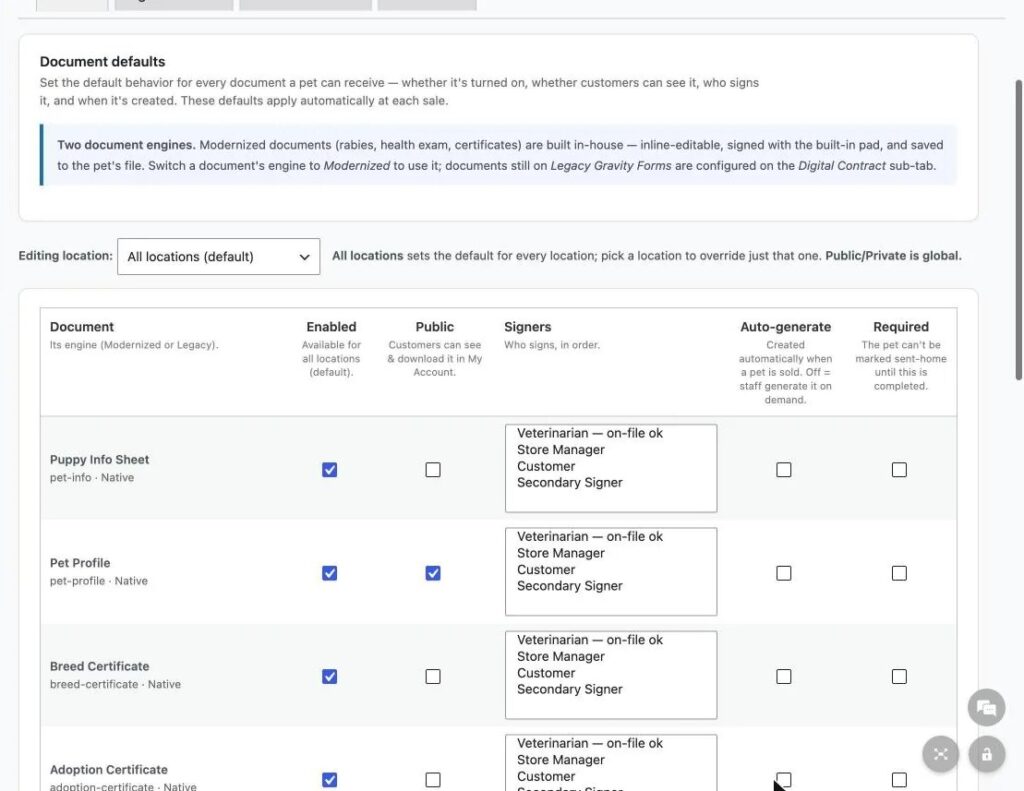
New sales are where the process changes. Upload the contract and warranty you already use, add signature and fill-in fields, and have families sign on a tablet at the counter. Our piece on e-signed puppy contracts covers how to set that up.
Go-live checklist for your puppy records
- Every pet in the building is in the system, with its microchip number and health history.
- The supplier feed is connected and someone has worked through the review queue.
- Your website shows the same available puppies as the sales screen.
- Contract and warranty templates have been tested with a practice sale.
- The old spreadsheet and scans are saved, dated and backed up.
- The paper kennel cards are in a labeled box, kept for a month.
If you’re comparing options for this move, the Unified Kennel Management page lays out how it compares with spreadsheets and separate tools for each job in the store. For the marketing side of running a pet store, see our pet retail marketing page.